







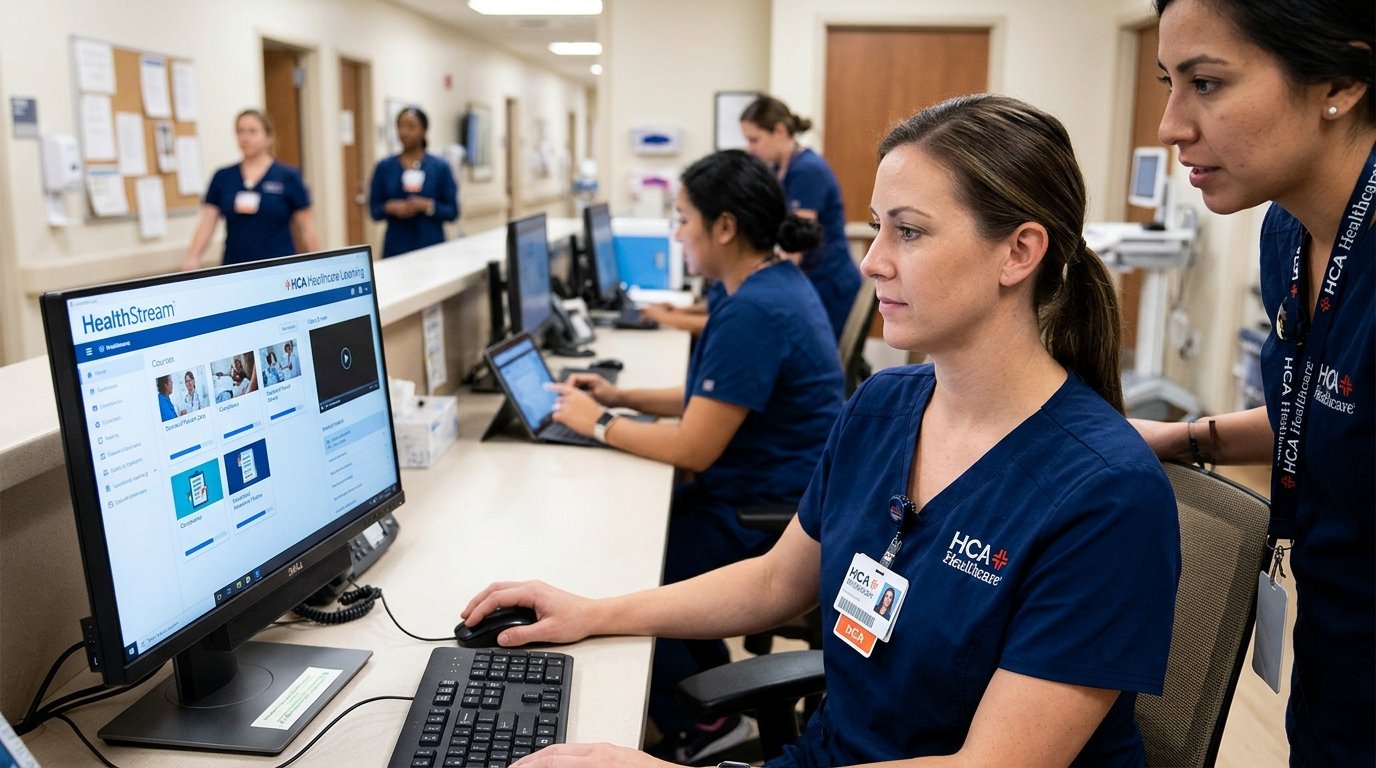
HealthStream HCA is associated with HCA Healthcare’s employee education and training system, which helps healthcare professionals access assigned learning activities, complete required training, and support their professional development. The platform is commonly referred to as the HealthStream Learning Center (HLC).
HCA Healthcare employees, including eligible nurses, clinical staff, and other team members, may use HealthStream to access workplace education and compliance-related learning. However, login instructions and available courses can vary depending on an employee’s facility, position, and account permissions.
Understanding how HealthStream HCA works can make it easier to access assigned courses, manage training responsibilities, and resolve common account problems. This guide explains the platform, login process, employee training features, troubleshooting options, and important information about using the system securely.
What Is HealthStream HCA?
HealthStream HCA refers to the HealthStream learning and education environment used by HCA Healthcare to support employee training and professional development.
HealthStream is a healthcare-focused learning management platform. A learning management system, commonly called an LMS, is software that organizations use to deliver educational materials, assign courses, manage training activities, and maintain learning records.
Within HCA Healthcare, the HealthStream Learning Center helps organize employee education and required compliance training. It provides an organized environment where eligible team members can access learning assignments and track relevant training activities.
The platform supports different types of workplace education, including:
- Mandatory employee training.
- Healthcare compliance education.
- Workplace policies and procedures.
- Clinical education and professional learning.
- Role-related training activities.
- Continuing education opportunities where available.
HealthStream is an employee learning resource. It should not be confused with a patient portal or a general employee payroll system.
What Is the Purpose of the HealthStream HCA Portal?
The primary purpose of the HealthStream HCA portal is to organize employee learning and training within the healthcare environment.
Healthcare organizations operate in a setting where employees must understand workplace procedures, follow applicable policies, and maintain relevant professional knowledge. Structured training helps organizations communicate these expectations.
HealthStream provides a centralized learning environment that supports several important activities.
1. Managing Mandatory Training
Healthcare employees may receive required training assignments based on their job responsibilities, department, and organizational requirements.
These assignments can cover subjects such as workplace safety, compliance, patient privacy, and other relevant organizational policies.
HealthStream helps organize assigned learning activities so employees can identify the training they need to complete.
2. Supporting Professional Education
Healthcare professionals need opportunities to maintain and develop their knowledge throughout their careers.
Depending on their role and available course catalog, employees may have access to educational resources that support professional development and workplace learning.
3. Recording Training Completion
The HealthStream Learning Center supports the recording and tracking of required education.
This allows authorized administrators to monitor relevant training activities and identify outstanding requirements.
Employees may also have access to information about their own completed learning activities, depending on their account permissions.
4. Organizing Learning Resources
Instead of relying entirely on separate training documents and disconnected learning activities, an LMS provides a structured environment for delivering educational content.
This can help employees understand which courses are assigned, what remains outstanding, and which activities have been completed.
Who Can Use HealthStream HCA?
HealthStream access is primarily intended for eligible individuals associated with HCA Healthcare who have been provided an appropriate account.
Potential users include:
HCA Healthcare employees: Team members may receive access to workplace training and required organizational education.
Nurses: Nursing professionals may use available learning resources to support role-related education and training.
Clinical staff: Eligible healthcare professionals may receive training assignments relevant to their responsibilities.
Administrative employees: Nonclinical employees may also receive courses covering organizational policies, compliance, and workplace procedures.
Other authorized users: Depending on facility arrangements, certain affiliated professionals, trainees, or other approved individuals may receive access.
Not every individual automatically receives an account. Access depends on the person’s relationship with HCA Healthcare, facility requirements, and account authorization.
How to Access the HealthStream HCA Login Portal
Accessing HealthStream HCA generally begins with using the employee learning link provided by HCA Healthcare or the employee’s facility.
The exact login process may differ between locations and account configurations. Some employees may access HealthStream through an internal employee network, while others may use a designated employee resource page.
Follow these general steps:
Step 1: Open the Official Employee Resource Page
Start by visiting your HCA facility’s official employee information page or accessing the employee intranet if you are authorized to use it.
Look for the HealthStream or employee education option.
Avoid relying on random login pages shared through unofficial websites.
Step 2: Select HealthStream
Choose the HealthStream employee education or learning portal option.
The system should direct you to the appropriate login environment for your organization or facility.
Step 3: Enter Your Assigned Credentials
Enter the username and password associated with your HCA or HealthStream account.
Depending on your facility’s configuration, your login may use HCA network credentials or separate HealthStream credentials.
Do not assume that every employee uses the same username format or initial password.
If you are a new employee and have not received login information, contact your manager, department administrator, or designated IT support team.
Step 4: Complete Any Required Authentication
Some account configurations may require additional identity verification or authentication steps.
Follow the instructions displayed by the official login system.
Never share a verification code or password with someone claiming to provide unofficial technical support.
Step 5: Open Your Learning Dashboard
After successfully signing in, you should be able to access the learning features assigned to your account.
Depending on your permissions, the available options may include assigned courses, training activities, learning records, and other educational resources.
If you cannot see an expected course, contact the appropriate training administrator rather than assuming that your account is inactive.
How to Complete HCA HealthStream Training Courses
Completing assigned training is one of the main reasons eligible HCA Healthcare employees use HealthStream.
The available learning activities depend on the employee’s role, department, facility, and assigned requirements.
The following process explains how to approach a typical online training assignment.
Step 1: Review Your Assigned Learning Activities
After signing in, look for the section containing your assigned courses or outstanding learning activities.
Review the course titles and any displayed deadlines.
Pay particular attention to assignments identified as mandatory or overdue.
Step 2: Open the Required Course
Select the training activity you need to complete.
Read the course description and review any instructions before beginning.
Some courses may include reading materials, videos, presentations, interactive activities, or knowledge assessments.
Step 3: Complete the Learning Material
Work through the course content carefully.
Depending on the training program, you may need to:
- Watch instructional videos.
- Read educational documents.
- Review workplace policies.
- Complete interactive learning activities.
- Answer knowledge-check questions.
Follow the course instructions instead of skipping sections.
Step 4: Complete Any Required Assessment
Some training activities include quizzes or assessments to evaluate understanding.
Read each question carefully and select the answer that best reflects the course material.
If an assessment requires a particular passing score, review the displayed instructions.
Requirements may differ between courses.
Step 5: Confirm Course Completion
After completing the required activities, check the course status.
Make sure the system records the course as completed rather than leaving it in an incomplete or pending state.
If the completion status does not update, allow time for the system to process the activity and contact the appropriate training administrator if the problem continues.
How to Track HealthStream Course Progress and Training Records
Tracking course progress is important because employees may have multiple learning assignments with different deadlines.
HealthStream’s learning management features support the recording of training activities, allowing authorized users to monitor compliance and educational progress.
Depending on the available account features, employees may be able to review:
- Assigned training activities.
- Completed courses.
- Outstanding assignments.
- Course progress.
- Completion dates.
- Available learning records or certificates.
Why Should Employees Review Their Training Status?
Regularly reviewing training progress can help employees avoid overlooking important assignments.
For example, an employee who has completed several courses but still has one outstanding compliance assignment should identify that remaining requirement before its deadline.
A simple review routine can help:
- Sign in to the employee learning portal.
- Review outstanding assignments.
- Check displayed deadlines.
- Complete required courses.
- Confirm that completion has been recorded.
- Contact the training administrator if a record appears incorrect.
Not every course necessarily provides a downloadable certificate. The available documentation depends on the course and organizational configuration.
How to Access HealthStream HCA From Home
Some employees may need to access training resources outside their usual workplace.
However, remote access depends on HCA Healthcare’s security arrangements, facility policies, account permissions, and the specific learning system being used.
Employees should follow their facility’s approved remote-access instructions.
A general approach includes:
1. Use an approved device.
Choose a personal or work device that meets your organization’s security requirements.
2. Open the authorized employee access page.
Use the employee portal or other approved entry point provided by your facility.
3. Sign in with your assigned account.
Enter your authorized credentials and complete any required authentication.
4. Check course availability.
Confirm that the assigned training activities are accessible from your current location.
5. Follow workplace timekeeping policies.
Required training may count as work time depending on the employee’s classification and applicable rules. Hourly employees should follow their manager’s instructions and HCA timekeeping policies before completing assigned training outside scheduled working hours.
If remote access is unavailable, contact your facility’s IT department or training administrator.
Common HealthStream HCA Login Problems and Solutions
Login difficulties can happen for several reasons, including incorrect credentials, account restrictions, technical problems, or network issues.
Understanding the likely cause can help employees identify the correct solution.
1. Incorrect Username or Password
An incorrect username or password is one possible reason for a failed login.
Check the following:
- Confirm that your username is entered correctly.
- Check whether Caps Lock is enabled.
- Make sure there are no extra spaces.
- Verify that you are using the correct account credentials.
- Confirm that your password has not expired.
If the credentials still do not work, use your organization’s approved password recovery process.
2. Forgotten Password
If you cannot remember your password, check whether your login page provides a password recovery option.
If your account uses HCA network credentials, you may need to reset your network password rather than a separate HealthStream password.
Follow the official instructions provided by your facility.
Do not use password-reset instructions from another healthcare organization because their procedures may be different.
3. Account Locked
Repeated unsuccessful login attempts can result in an account lockout, depending on the system’s security configuration.
If your account is locked:
- Stop making repeated login attempts.
- Check whether the login page provides an account recovery option.
- Contact your facility’s IT support team if necessary.
- Follow the account verification procedure.
- Try signing in again after the account has been restored.
4. HealthStream Page Is Not Loading
Sometimes the problem is related to the browser, internet connection, or temporary service availability.
Try these troubleshooting steps:
- Check your internet connection.
- Refresh the login page.
- Close unnecessary browser tabs.
- Clear the browser cache if appropriate.
- Try an organization-approved browser.
- Restart your browser.
- Check whether your organization has reported a system interruption.
If the problem continues, contact technical support.
5. Assigned Course Is Missing
An employee may successfully access HealthStream but fail to find an expected training assignment.
Possible explanations include:
- The course has not yet been assigned.
- The employee’s department or role has changed.
- The training assignment is still being processed.
- The course is located in a different learning section.
- The account has an incorrect role or access configuration.
Contact your manager or training administrator to verify the assignment.
6. Course Completion Is Not Updating
Sometimes an employee finishes a learning activity but the system does not immediately show the completed status.
Before repeating the course, check whether all required sections and assessments have been completed.
If the status remains incorrect, report the issue to the appropriate training administrator and provide the course name and approximate completion time.
HealthStream HCA vs. Other HCA Employee Portals
HCA Healthcare provides access to different digital resources for employees, and each system serves a different purpose.
Understanding these differences helps prevent confusion when searching for a particular workplace service.
| Platform or Resource | Main Purpose |
|---|---|
| HealthStream Learning Center | Employee learning and training |
| HCA OneHR Portal | Employee HR-related services, depending on access |
| HCA HR Answers | Human resources information and assistance |
| HCA Password Reset | Supported account password recovery |
| MyHealthONE | Patient health information and patient portal services |
| HCA Expanse | Electronic health record system |
HealthStream vs. OneHR Portal
HealthStream focuses on employee learning and education.
The OneHR Portal provides access to certain employee administrative services, such as pay statements and other HR-related information, depending on the employee’s access.
These systems should not be treated as interchangeable.
HealthStream vs. MyHealthONE
HealthStream is an employee education platform.
MyHealthONE is a patient-facing portal used for accessing certain personal healthcare information and services.
Patients should not use an employee learning portal to access their medical records.
HealthStream vs. HCA Expanse
HCA Expanse is HCA Healthcare’s electronic health record platform.
It supports clinical workflows and patient care documentation, while HealthStream focuses on learning and training.
Both systems serve different purposes within the healthcare organization.
Benefits of HealthStream for Healthcare Employees
A structured learning environment can support employees and healthcare organizations in several ways.
Centralized Learning Resources
HealthStream provides a centralized environment for assigned learning activities.
Employees can use their authorized accounts to access available educational materials without relying entirely on separate training documents.
Better Training Organization
A learning management system helps organize assignments and training records.
This can make it easier for employees and authorized administrators to identify outstanding learning requirements.
Support for Workplace Compliance
Healthcare organizations must communicate policies and applicable compliance expectations to their workforce.
HealthStream supports the organization and recording of required training activities.
Professional Development Opportunities
Depending on available courses and account permissions, employees may access learning resources that help develop their professional knowledge.
This can be particularly useful for healthcare professionals who need to remain familiar with workplace procedures and role-related educational material.
Accessible Learning Environment
Digital learning systems can make educational resources available through approved devices and supported access methods.
The actual availability of remote learning depends on organizational policies and technical permissions.
Security and Privacy Tips for HealthStream HCA Users
Healthcare organizations handle sensitive information, so protecting employee accounts is important.
Employees should follow their organization’s security requirements whenever they use HealthStream or other workplace systems.
Consider these precautions:
Use strong passwords. Create passwords that are difficult to guess and follow your organization’s password requirements.
Never share account credentials. Your login information should remain private, even when someone claims to need it for technical assistance.
Use official login pages. Access HealthStream through an approved HCA employee resource or facility-provided login page.
Avoid public computers. Whenever possible, use an authorized device rather than an unsecured public computer.
Log out when appropriate. End your session when using a shared or public device.
Protect verification codes. Never share authentication codes with another person.
Report suspicious activity. Contact your organization’s IT or security department if you notice unexpected account activity.
Keep devices updated. Follow your organization’s guidance for browser, operating system, and security updates.
These practices help protect employee accounts and support responsible access to workplace learning systems.
What Should New HCA Employees Know About HealthStream?
New employees may encounter HealthStream during onboarding or shortly after joining their facility.
The exact onboarding process depends on the position and facility, but employees should understand a few important points.
First, confirm whether your employee account has been created. Access may not be available immediately on the first day.
Second, obtain the correct login instructions from your supervisor, human resources representative, or training administrator.
Third, check whether you have any mandatory learning assignments.
Fourth, review the deadlines and completion requirements for each assigned course.
Finally, ask for assistance if a course is missing or your account does not work.
New employees should avoid using another employee’s account to access training. Each individual should complete assigned education through their own authorized account so that training records remain accurate.
Frequently Asked Questions About HealthStream HCA
1. What is HealthStream HCA?
HealthStream HCA refers to the HealthStream learning environment used by HCA Healthcare to support employee education and training. The HealthStream Learning Center helps organize required courses, compliance training, and other learning activities for eligible employees.
2. How do I log in to HealthStream HCA?
Access your facility’s official employee resource page or intranet, select the HealthStream option, and enter your assigned credentials. Login requirements may differ depending on your facility and account configuration.
3. Can I access HealthStream HCA from home?
Remote access may be available to eligible employees, but it depends on HCA security policies, facility procedures, and account permissions. Follow the remote-access instructions provided by your organization.
4. What should I do if my HealthStream HCA password does not work?
First, confirm that you are using the correct username and password. If you have forgotten your password, follow the official recovery process for your account. Contact HCA Client Support Services or your facility’s IT department if you cannot regain access.
5. Is HealthStream HCA mandatory for employees?
Some HCA employees receive mandatory training assignments through the HealthStream Learning Center. The required courses and deadlines depend on the employee’s position, facility, and applicable organizational policies.
6. Can I see my completed training courses in HealthStream?
HealthStream supports the recording and tracking of training activities. Depending on your account permissions and course configuration, you may be able to review completed courses, progress, and available learning records.
7. Is HealthStream HCA the same as MyHealthONE?
No. HealthStream is associated with employee education and training, while MyHealthONE is a patient-facing platform for accessing certain healthcare information and services.
8. Who should I contact if I cannot access HCA HealthStream?
Current HCA Healthcare employees who need help with their username, password, or login ID can contact HCA Client Support Services at 615-344-4357 or 800-265-8422. Employees may also contact their facility’s IT department or training administrator for issues involving course assignments and learning access.
Conclusion
HealthStream HCA plays an important role in organizing employee education and training within HCA Healthcare. Through the HealthStream Learning Center, eligible employees can access assigned learning activities, complete required training, and support their ongoing professional development.
Understanding the login process, account requirements, training assignments, and troubleshooting options can make the platform easier to use. Employees should always follow their facility’s official instructions because access methods and training requirements may differ between departments and locations.
For the best experience, use authorized employee resources, keep your login credentials secure, review assigned courses regularly, and contact the appropriate support team whenever you experience an account or training issue.
Explore More: CVS Health Sterile Saline Wound Wash: Uses & Benefits












Discussion about this post